
QR code is not displayed
Description
You have the AGOV access app installed on your smartphone or tablet and you want to log in to an online public service on the same mobile device. However, no QR code is displayed on the AGOV login page.Instructions
When you log in to an online service or to your AGOV account on a mobile device, no QR code is displayed on the AGOV login page if the AGOV access app is installed on that device.- You have two options for logging in:
- Click on Login with AGOV access to confirm the login on the same mobile device in the AGOV access app.
- Click on Show QR code if you want to confirm the login using a different mobile device. You can now start the login process by scanning the QR code on the other mobile device.
-

- Click on the image to enlarge
- Click on Login with AGOV access to confirm the login on the same mobile device in the AGOV access app.
- Click on Hide QR code to hide the displayed QR code and continue the login process on the same mobile device.
-
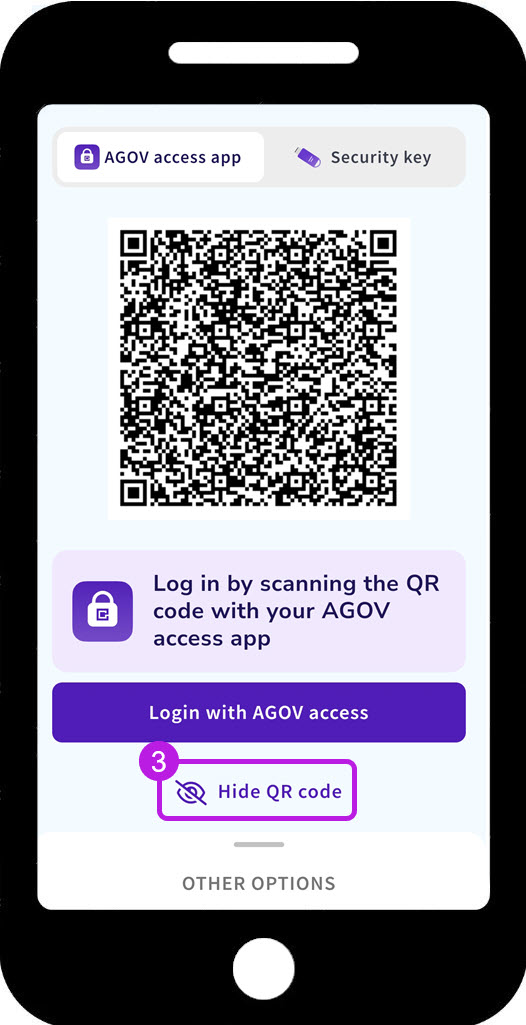
- Hide QR code to continue with registration on the same mobile device.
-
Related help articles
Registering with an online public service with AGOV app
Were we able to help you?